Plan a workflow
Plan a workflow before starting execution. For a known placement, make a manual plan. To compare placements, choose a workflow version and execution scope, generate candidates, then select one as the schedule plan.
Using AkôFlow Desktop
- Open a workflow definition and choose Generate plan. Planning sessions are created from that workflow so the session stays bound to its immutable version.
- Choose Automatic planning.
- Select an execution or simulation scope and its network topology.
- Select the available algorithms you want to compare. Desktop offers PRISM Time, PRISM Cost, and HEFT when the server reports them. Set PRISM's option count or beam width if you want to change the search.
- Optionally set a deadline, budget, or import an interference matrix.
- Choose Generate candidate plans.
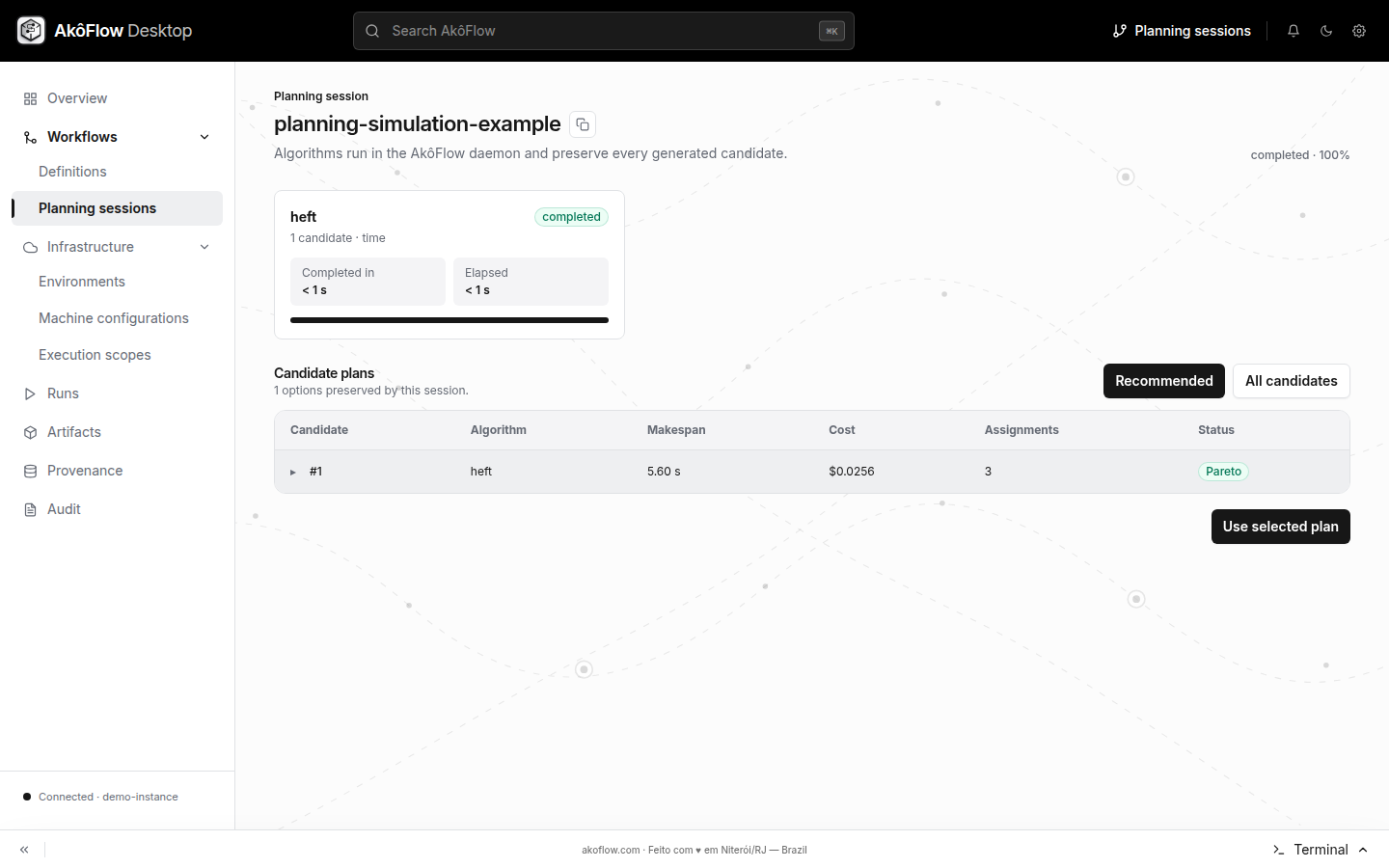
- Follow each algorithm run's progress. Expand candidates to inspect their Gantt timelines and assignments.
- Inspect predicted time, cost, feasibility, and assignments, then select a candidate. HEFT and PRISM use different prediction models, so compare observed runs when you need evidence of which plan performs better. AkôFlow saves the selected schedule plan for execution.
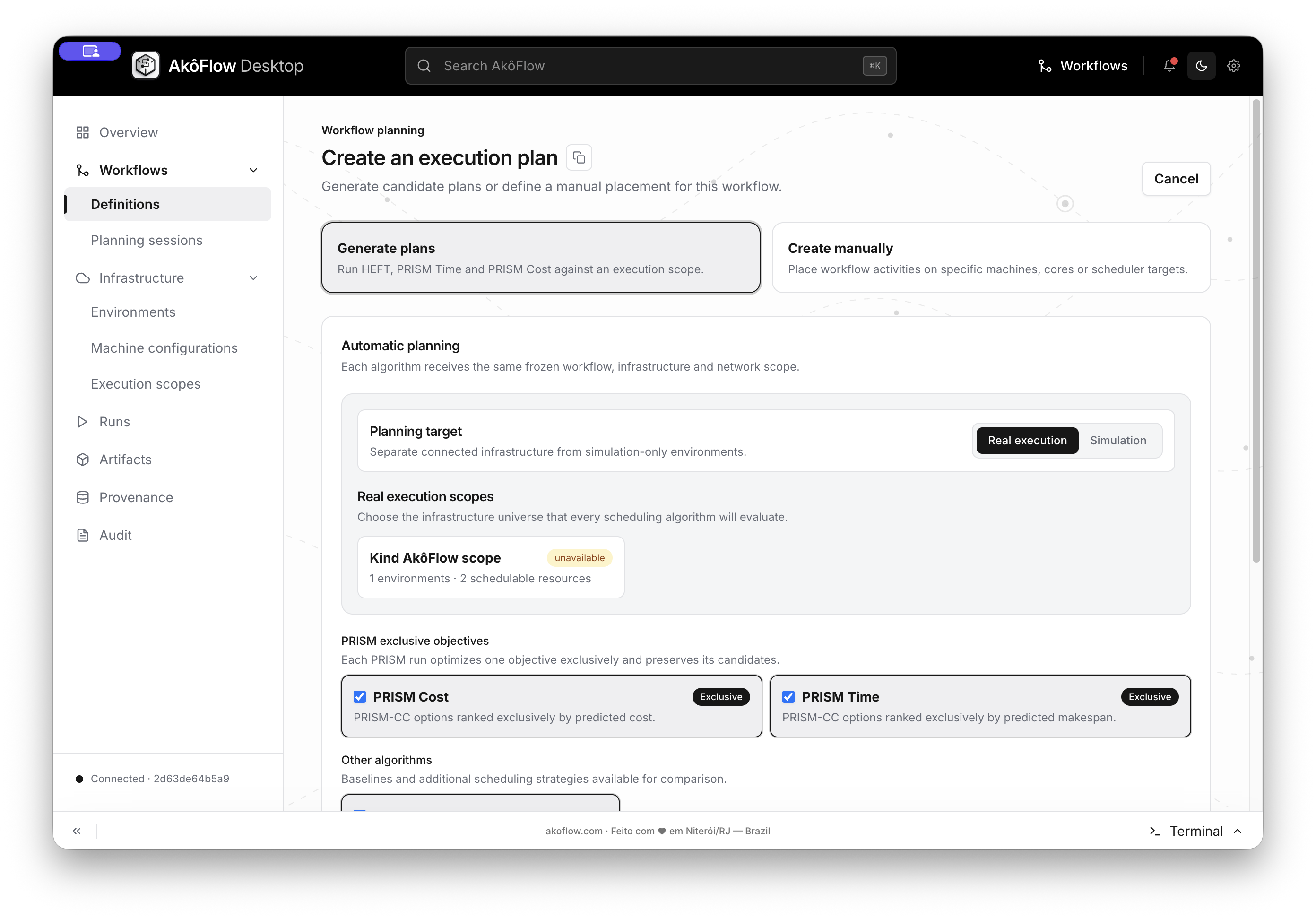
Choose Generate plans to compare candidate schedules. The target selector keeps real execution scopes separate from simulation-only scopes; PRISM Cost and PRISM Time are exclusive objectives, while HEFT is a comparison baseline.
The server's available algorithms are listed by GET /planning-algorithms/. A session may also include a deadline, budget, or directed interference matrix; HEFT does not use that matrix for its placement. See PRISM and HEFT for the prediction models and planning states for candidate and session fields.
Manual plans
Choose the manual planning mode when placement is known in advance. Select a scope and topology, then assign every activity to a compatible runtime and resource and provide its expected duration. The Desktop computes a dependency-aware schedule and submits the complete plan for validation.
Imported plans
The plans API also accepts a complete plan as imported data. Imported IDs must refer to an existing workflow version, execution scope, topology, and resources; the server validates the plan before saving it. That validation does not check runtime bindings. Confirm an enabled, mode-compatible binding for every assigned resource before starting execution.
Using the API
Complete API connection setup before running the commands below.
First discover the algorithms available in the running instance:
curl --fail-with-body -H "Authorization: Bearer $AKOFLOW_API_TOKEN" \
  "$AKOFLOW_API_URL/planning-algorithms/"
Create an automatic planning session. The IDs below refer to the environment, scope, topology, and workflow registered in the SimGrid first-run sequence. Complete those registration steps first, or replace all four IDs with records from your own instance:
curl --fail-with-body \
  -H "Authorization: Bearer $AKOFLOW_API_TOKEN" \
  -H 'Content-Type: application/json' \
  -d '{
    "id": "planning-simulation-example",
    "workflowVersionId": "simulation-example-workflow-v1",
    "executionScopeId": "simulation-example-v1-scope",
    "networkTopologyId": "simulation-network-v1",
    "algorithms": [
      {"id": "prism-time", "configuration": {"optionCount": 25, "beamWidth": 120}},
      {"id": "prism-cost", "configuration": {"optionCount": 25, "beamWidth": 120}},
      {"id": "heft", "configuration": {}}
    ],
    "deadlineSeconds": 0,
    "budget": 0
  }' \
  "$AKOFLOW_API_URL/planning-sessions/"
Creation returns 202 Accepted. Poll the session until its status is completed, then list its candidates. This lets you compare the final ranks:
curl --fail-with-body -H "Authorization: Bearer $AKOFLOW_API_TOKEN" \
  "$AKOFLOW_API_URL/planning-sessions/planning-simulation-example/"

curl --fail-with-body -H "Authorization: Bearer $AKOFLOW_API_TOKEN" \
  "$AKOFLOW_API_URL/planning-sessions/planning-simulation-example/candidates/"
List the candidate IDs, choose one after comparing the candidates, and inspect it before selection:
curl --fail-with-body -H "Authorization: Bearer $AKOFLOW_API_TOKEN" \
  "$AKOFLOW_API_URL/planning-sessions/planning-simulation-example/candidates/" | jq -r '.[].id'

read -r -p 'Candidate ID to select: ' AKOFLOW_CANDIDATE_ID || exit 1
[ -n "$AKOFLOW_CANDIDATE_ID" ] || exit 1

curl --fail-with-body -H "Authorization: Bearer $AKOFLOW_API_TOKEN" \
  "$AKOFLOW_API_URL/planning-sessions/planning-simulation-example/candidates/$AKOFLOW_CANDIDATE_ID/"

curl --fail-with-body -X POST \
  -H "Authorization: Bearer $AKOFLOW_API_TOKEN" \
  "$AKOFLOW_API_URL/planning-sessions/planning-simulation-example/candidates/$AKOFLOW_CANDIDATE_ID/select/"
Check the candidate's feasible field before selecting it. It indicates that the candidate passed plan validation, not that its runtime bindings are ready. Selection returns 201 Created with the saved schedule plan.
For a manual plan, send the complete validation envelope used by akoflow-examples/simulation/plan-request.yaml to POST /schedule-plans/. To import an already assembled plan whose referenced objects are registered, send { "plan": ... } to POST /schedule-plans/import/; the server sets its source to imported and validates it. These routes save the predicted metrics you supply rather than recalculating them.
Import a saved plan
To try the import route, complete the SimGrid first-run tutorial through Register the fixed plan. This reads that saved plan, gives the copy, its assignments, and its cloud lifecycle actions new IDs, and submits only the import envelope. Run it once per imported ID; use another ID if the copy already exists.
set -o pipefail
AKOFLOW_IMPORTED_PLAN_ID='simulation-example-import-v1'

curl --fail-with-body -H "Authorization: Bearer $AKOFLOW_API_TOKEN" \
  "$AKOFLOW_API_URL/schedule-plans/simulation-example-plan-v1/" |
  jq --arg id "$AKOFLOW_IMPORTED_PLAN_ID" '{plan:(
    .id = $id |
    .assignments |= map(.id = ($id + "-" + .id) | .planId = $id) |
    (.lifecycleActions //= []) |
    .lifecycleActions |= map(
      .id = ($id + "-" + .id) |
      .schedulePlanId = $id |
      (.dependsOn //= []) |
      .dependsOn |= map($id + "-" + .)
    )
  )}' |
  curl --fail-with-body \
    -H "Authorization: Bearer $AKOFLOW_API_TOKEN" \
    -H 'Content-Type: application/json' --data-binary @- \
    "$AKOFLOW_API_URL/schedule-plans/import/" \
    -o imported-plan.json || exit 1

jq '{id,source,predicted}' imported-plan.json
Expect source: "imported" and the new ID. The copied lifecycle dependencies must point to the new action or assignment IDs; the command above updates those references too.
Next step
Review the selected plan and start and monitor an execution.
Review planning records in Desktop
Planning starts under the selected workflow. Choose generated planning when algorithms should compare alternatives, or manual planning when placements are already known.
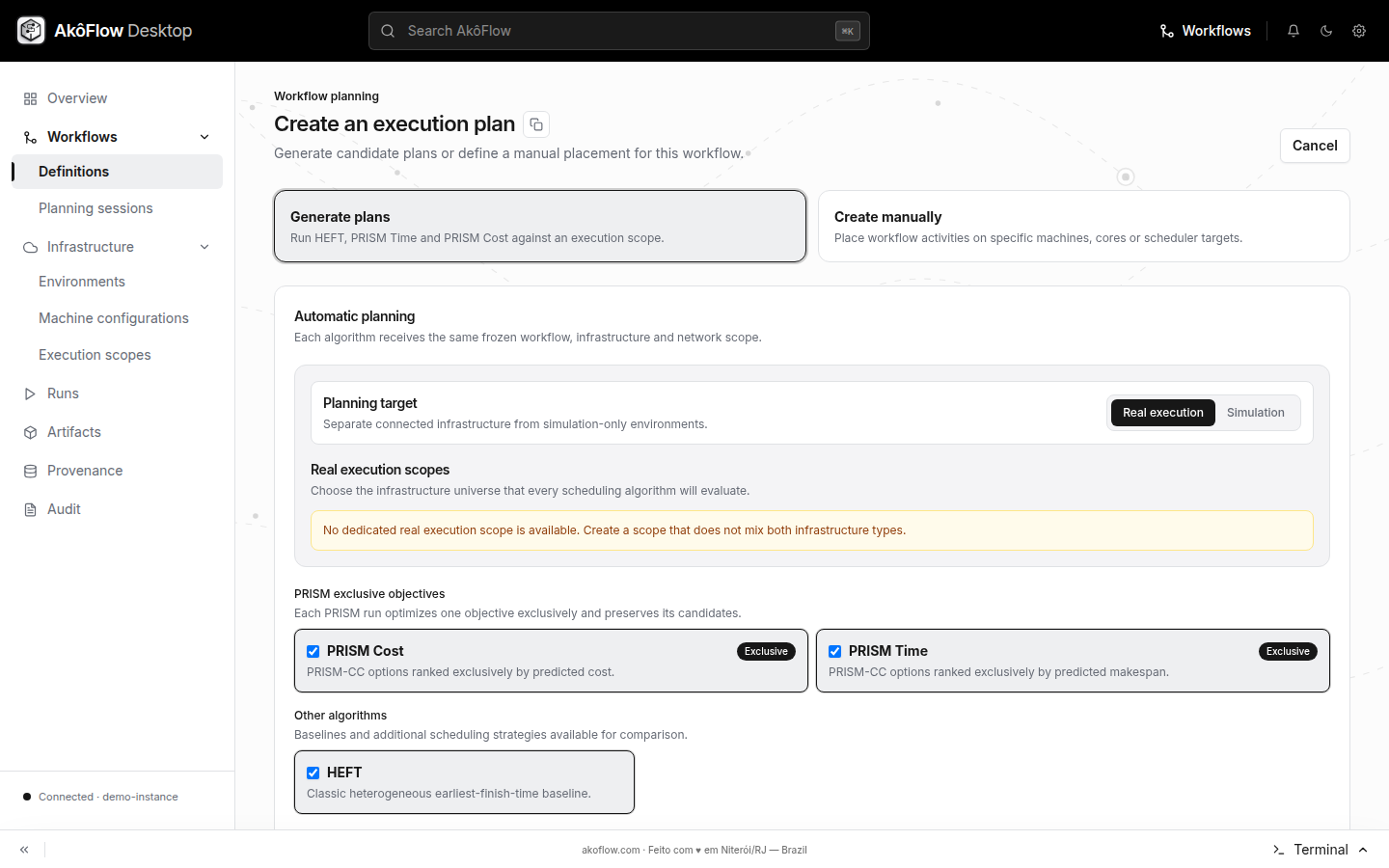
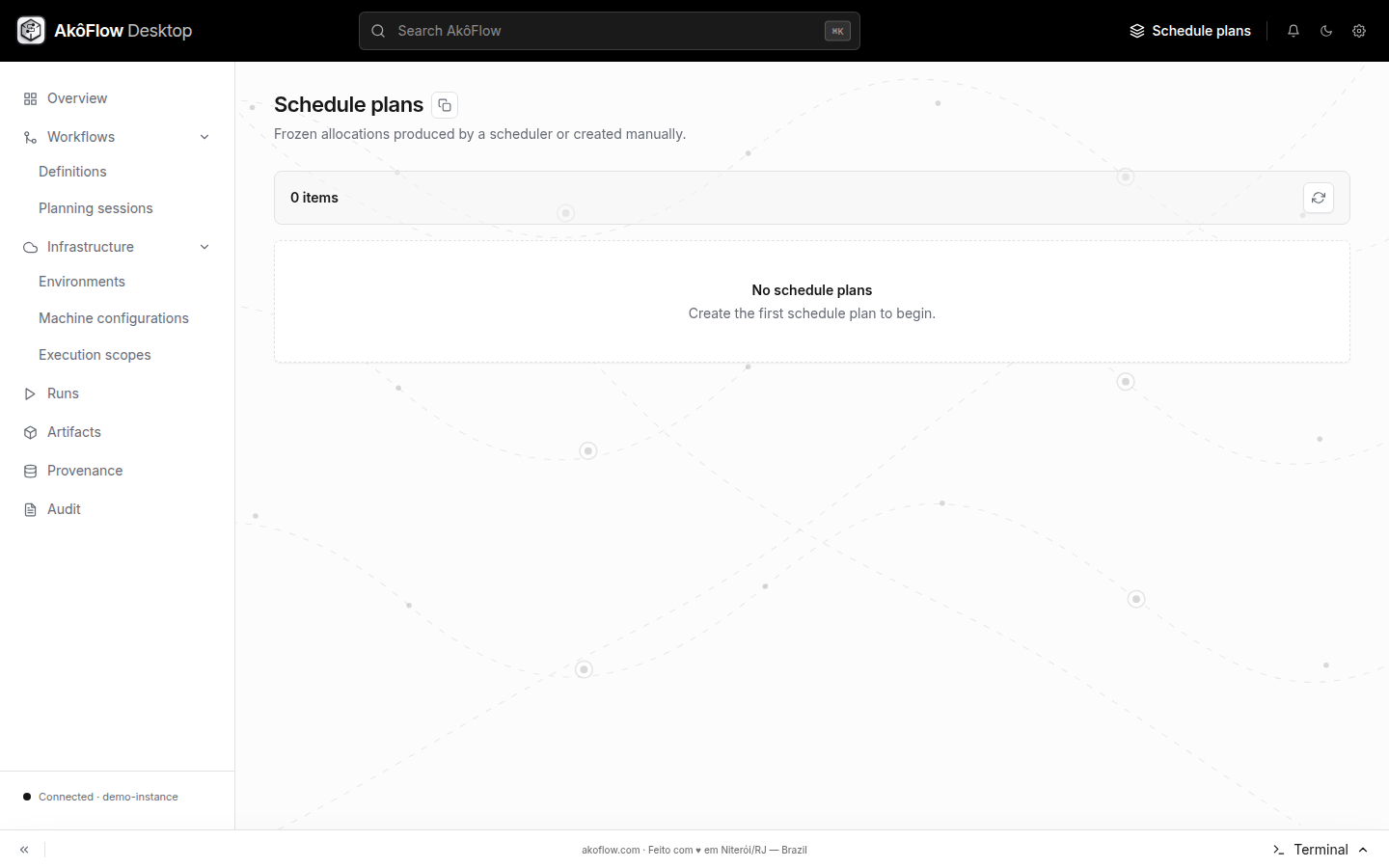
Saved plans remain available in the plan catalog. A plan detail shows the selected target and schedule, while its executions section lists runs created from that immutable plan.
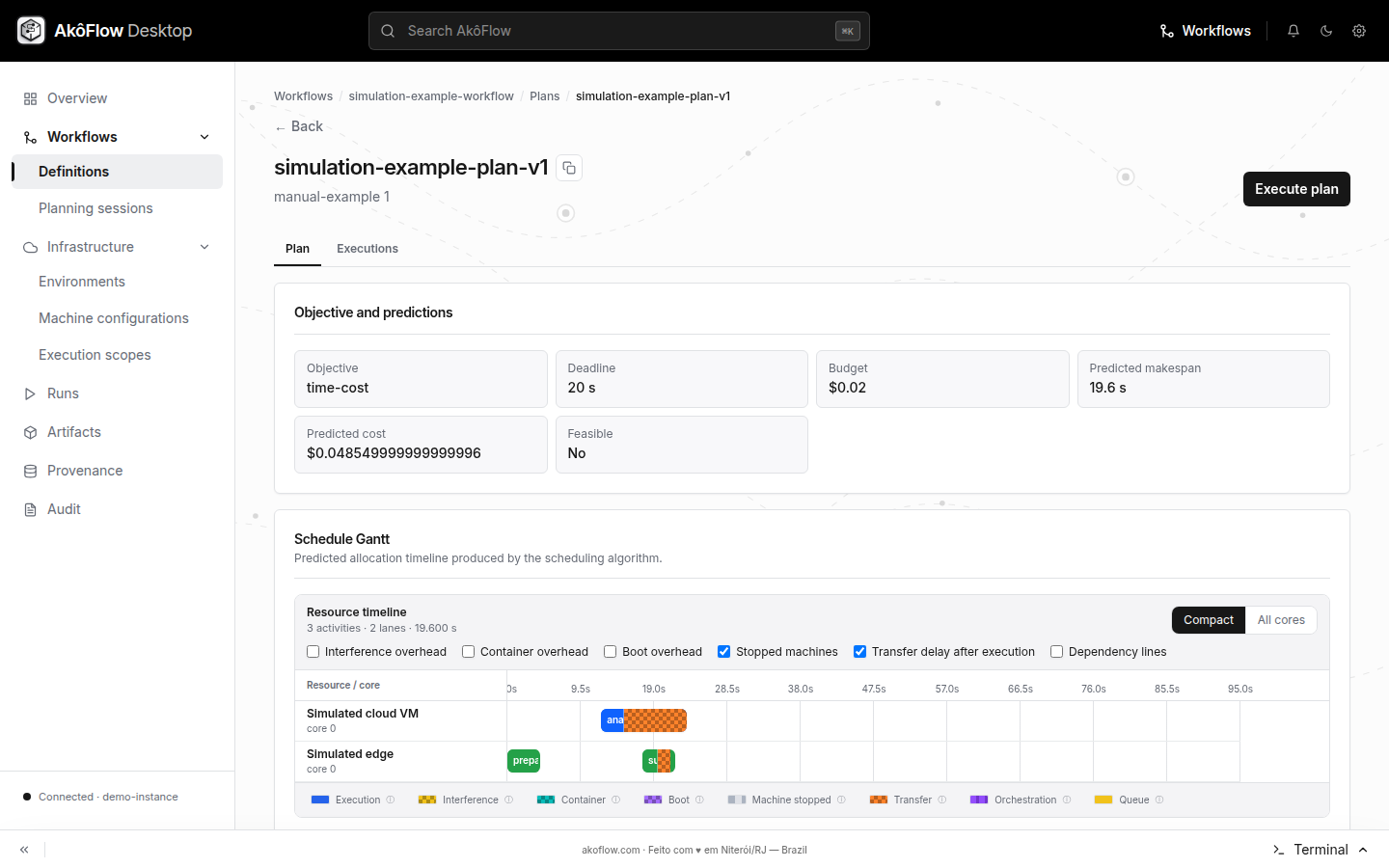
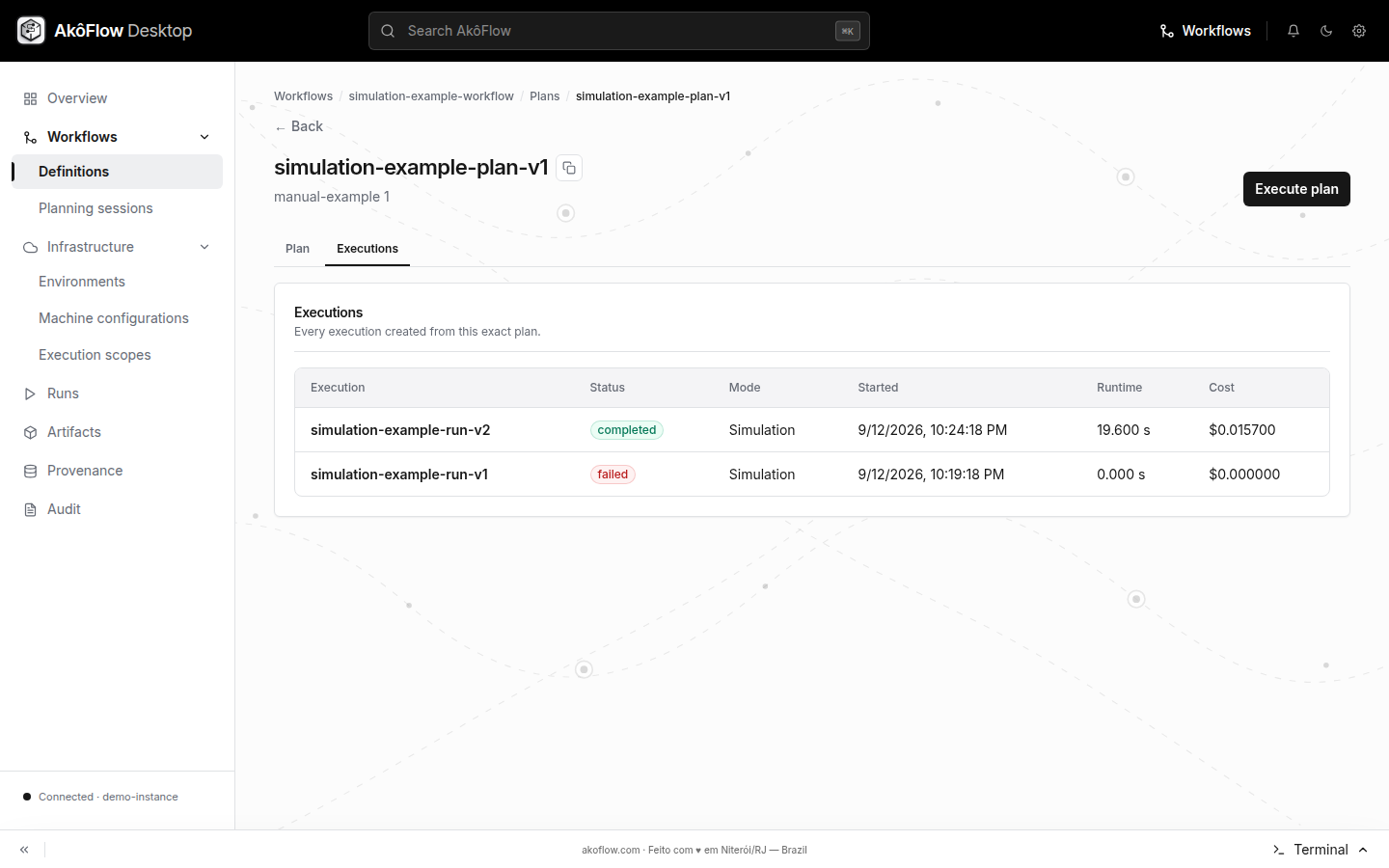
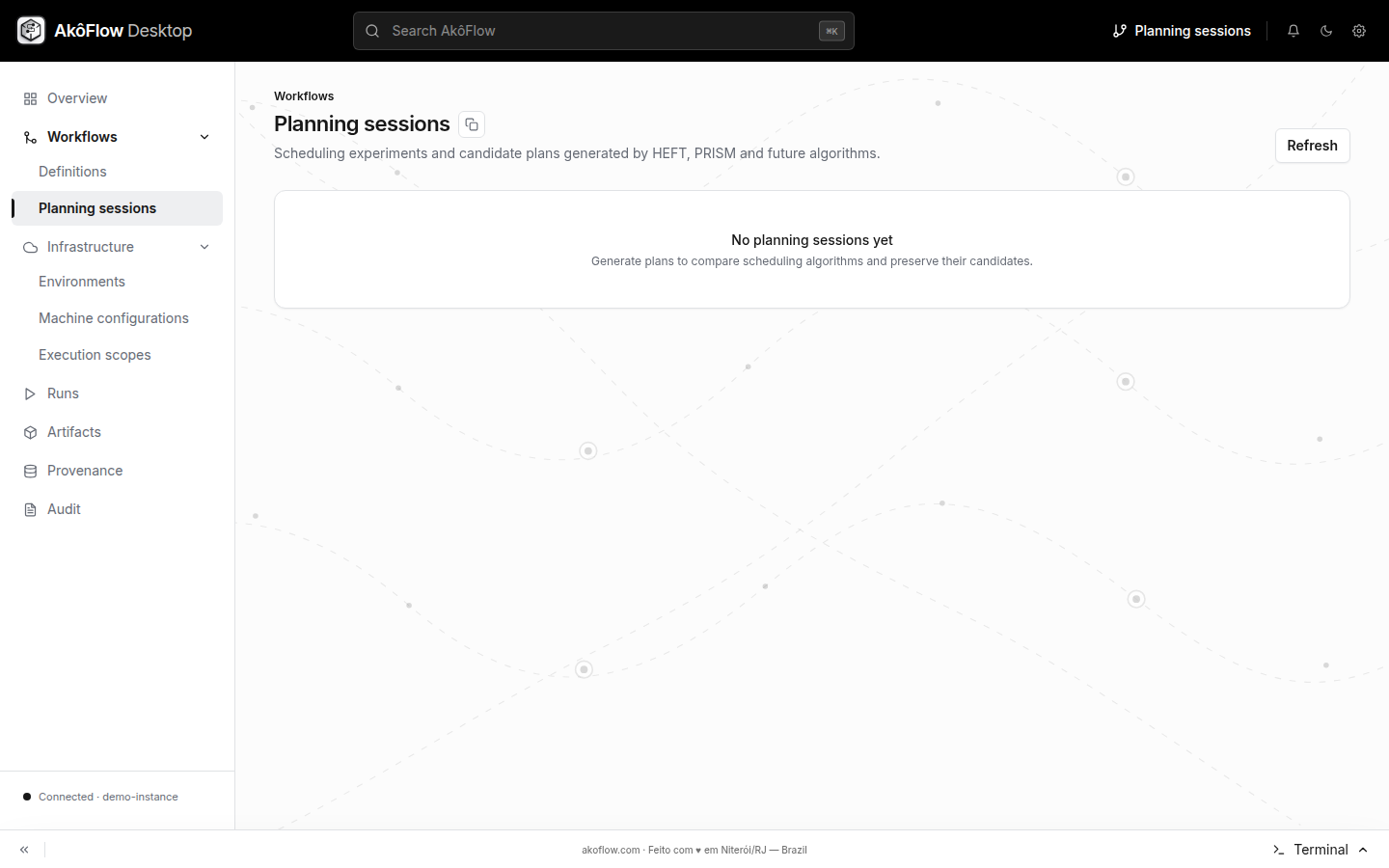
Planning sessions retain candidate comparisons before promotion. Open a session to compare algorithm runs and select a feasible candidate.